Device Restrictions Every School Should Implement
By CtrlOne Team ·
School computers face a unique mix of pressures: they are used by curious students, shared across classes, subject to safety obligations, and managed by small, stretched IT teams. Good school endpoint management keeps devices safe and focused on learning without constant hands-on work. Here are the device restrictions every school should have in place.
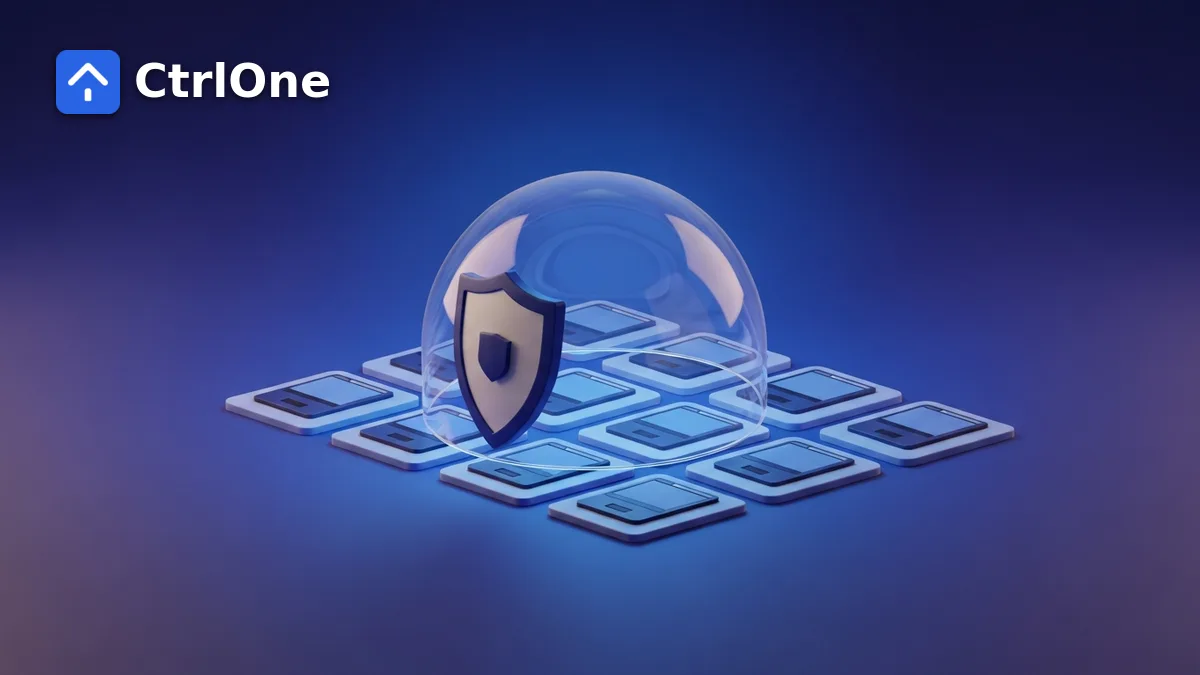
Why schools need device restrictions
Students will explore - that is the point of a computer lab - but exploration can mean installing games, wandering to unsafe sites, changing settings, or getting around protections. Schools also carry real safety and compliance responsibilities for what happens on their devices. Restrictions keep machines focused on learning and keep students safer.
The essential restrictions
A practical school baseline covers a few key areas:
- Application control so only approved educational software runs, and games or unapproved tools do not.
- Web and browser restrictions to filter unsafe content and limit distractions.
- USB control to stop malware from flash drives and prevent data walking off.
- Block access to Control Panel, Settings, and command-line tools.
- Optional time or scheduling limits so devices are available when lessons need them.
Balancing learning and safety
The aim is not to lock students out of learning, but to remove the distractions and dangers that get in the way. Restrictions should be scoped by age and purpose - a young-learner lab needs a tighter profile than a senior computing class - and reviewed as needs change through the year.
Managing devices at scale
Whether it is a fixed computer lab or a 1:1 take-home program, schools cannot configure machines one by one. They need to define a profile once and push it to every device, update it centrally when needs change, and keep it enforced even on laptops that go home - where they are off the school network and out of easy reach.
School endpoint management with CtrlOne
CtrlOne gives schools application, web, and USB control plus Control Panel and command-line restrictions as managed policies applied across every device from one console. Enforcement is tamper-resistant and does not depend on the school network, so take-home laptops stay protected - letting a small IT team manage a large fleet without hands-on work per machine.
Frequently asked questions
What device restrictions should schools implement?
A practical baseline includes application control for approved educational software, web and browser filtering, USB control, blocking Control Panel, Settings, and command-line tools, and optional time or scheduling limits - scoped by age and purpose.
How do schools manage student devices at scale?
By defining a device profile once and pushing it to every machine from a central console, updating it centrally as needs change, and using tamper-resistant enforcement that works off the school network so take-home laptops stay protected.
How do you keep restrictions on take-home school laptops?
Use enforcement that does not depend on the school network and cannot be easily undone by the student. Domain-based tools often lose their grip off-network, so a managed, tamper-resistant policy layer is important for 1:1 programs.
Keep student devices safe and focused
See how CtrlOne manages a whole school's devices - labs and take-home laptops - from one console.