Application Control & Whitelisting Software for Windows
CtrlOne decides which programs are allowed to launch on your Windows fleet. Block apps by name and signature, stop installers and risky file types, shut down remote-access tools, and disable CMD, PowerShell, and Task Manager - all from one web console with tamper-proof, offline enforcement.
What is application control?
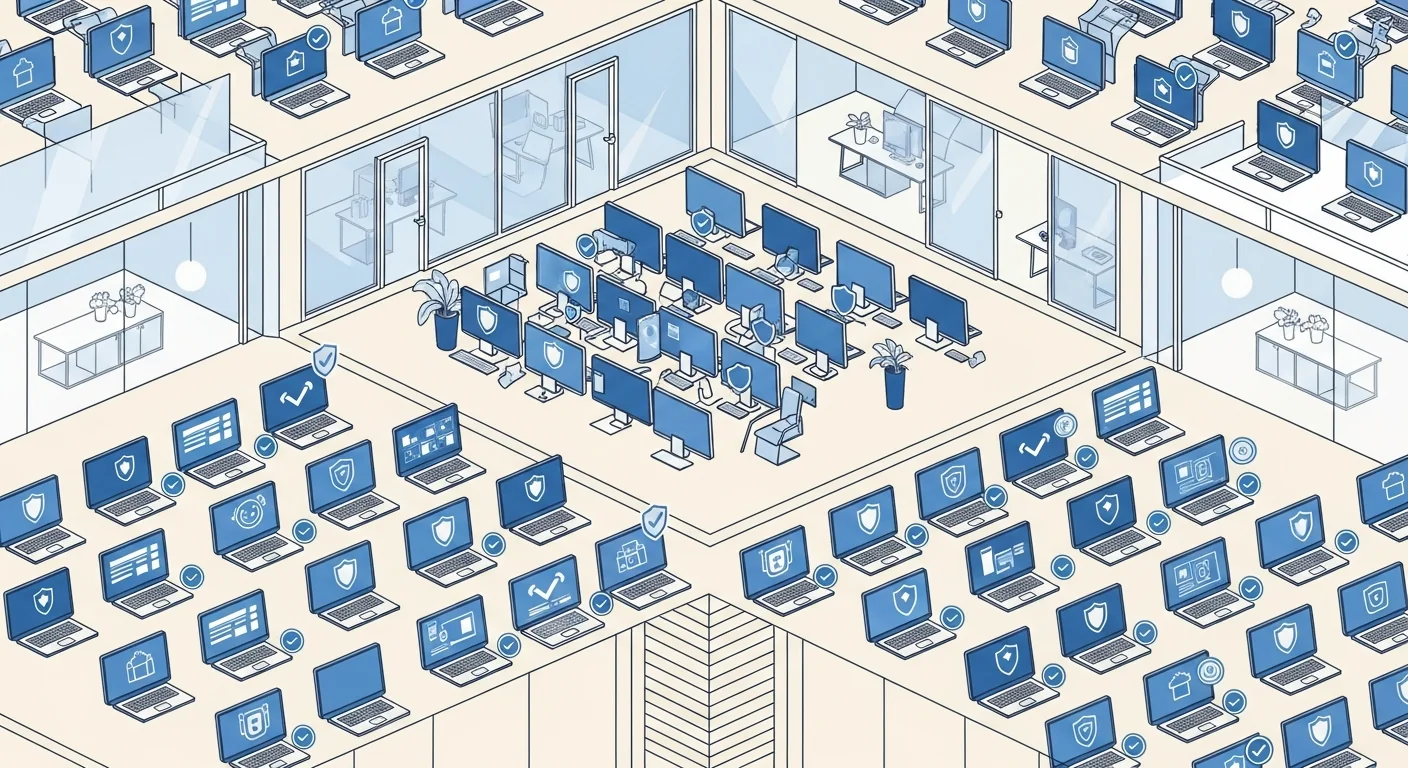
Application control is how an organization governs which software is allowed to execute on managed computers. Unmanaged endpoints let users run almost anything they can download - installers, portable tools, scripts, and remote-access utilities - and each one is a potential path to malware, data loss, or a support incident. Application control flips that model: instead of hoping an antivirus engine catches a bad program after it runs, you decide up front what may launch and block the rest, from a single policy that applies consistently across every machine you manage.
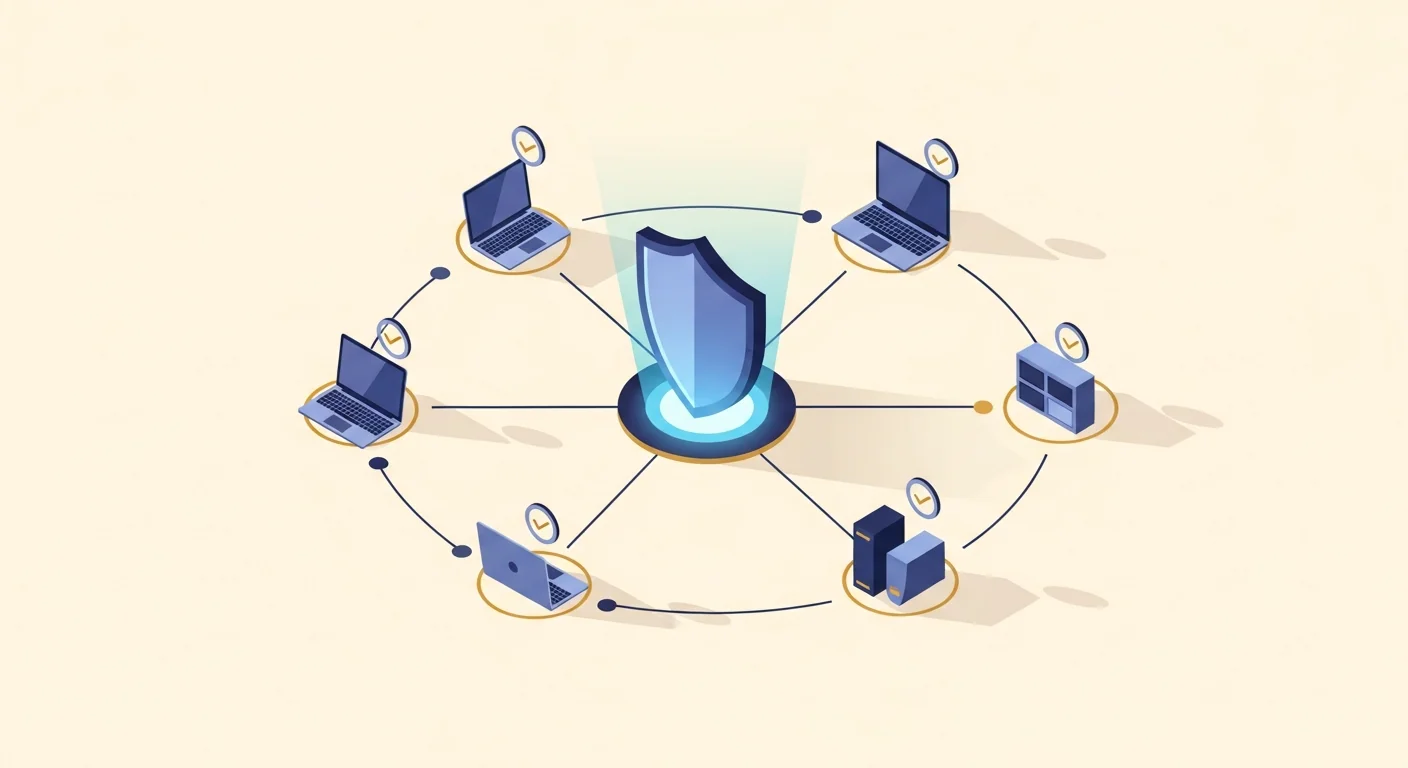
CtrlOne enforces application policy through a lightweight, tamper-proof agent that runs as a protected system service on every Windows 10 and Windows 11 PC and checks in with the web console about every 30 seconds. It uses the native Windows enforcement mechanisms - AppLocker deny rules, Software Restriction Policies, Image File Execution Options, and DisallowRun - so blocks are honored deep in the operating system rather than by a fragile shim that a determined user could sidestep. You can stop programs by executable name or by publisher signature, block installers and specific file types outright, and cut off the remote-access tools attackers and unauthorized helpers rely on, such as AnyDesk, RustDesk, and UltraViewer.
Beyond blocking whole applications, CtrlOne lets you take away the tools people use to undo policy or poke at the system: CMD, PowerShell, the Registry Editor, and Task Manager can each be disabled, and per-app time budgets cap how long a permitted application may be used each day. Because enforcement lives in the agent, these rules hold when a device is offline and fail closed after a configurable window, so a laptop off the corporate network can't quietly run whatever it likes. Every change is written to a tamper-evident, hash-chained audit log, and policies are versioned with one-click rollback, so tightening the ruleset - or reversing a change that broke a workflow - is fast and safe.
Why control applications with CtrlOne
- Block risky software up front - Stop unwanted programs from ever launching instead of reacting after they run, using name and signature rules pushed to the whole fleet from one console.
- Shut out remote-access tools - Block AnyDesk, RustDesk, UltraViewer, and similar utilities so no one can open an unauthorized remote session into a managed PC and take data or control.
- Stop unwanted installs - Block installers and specific file types, and stop unsigned executables, so users can't add new software or run downloaded payloads on locked-down machines.
- Remove the escape hatches - Disable CMD, PowerShell, Registry Editor, and Task Manager so users can't script around policy, edit protective keys, or kill the processes that enforce it.
- Cap time on permitted apps - Set per-app time budgets so even allowed programs - games, browsers, or utilities - can only be used within the daily limits you define per device.
- Safe, reversible rollout - Every policy change is versioned with one-click rollback and logged in a tamper-evident audit trail, so you can tighten rules without risking a fleet-wide lockout.
Application control features
- Block by name & signature - Deny programs by executable name or by publisher signature so blocks survive simple renames and cover every build shipped from a given vendor.
- Native enforcement engines - Uses AppLocker deny rules, Software Restriction Policies, Image File Execution Options, and DisallowRun so blocks hold at the operating-system level.
- Remote-access tool blocking - Prevent AnyDesk, RustDesk, UltraViewer, and similar remote-control apps from running to close a common unauthorized entry path into the fleet.
- Installer & file-type blocks - Stop installers and chosen file types from executing so users can't add new software or run downloaded payloads on a managed PC.
- Block unsigned executables - Use built-in Windows signing policy to stop unsigned programs and installers from running, without the brick risk of full application allow-listing.
- Disable command tools - Turn off CMD, PowerShell, Registry Editor, and Task Manager so users can't script around policy, edit the registry, or terminate protected processes.
- Per-app time budgets - Cap how long each permitted application may run per day, useful for kiosks, labs, and shared workstations where focus and fairness matter.
- Attachment execution blocking - Block execution of email attachments and downloads so a double-clicked file straight from a message can't launch on a managed endpoint.
Who uses CtrlOne application control
- IT security teams - Standardize an allowed-software posture across every corporate PC and block risky tools from a single console instead of chasing installs machine by machine.
- Call centers & BPOs - Stop remote-access tools and unapproved apps on shared agent workstations to protect customer data and satisfy client security requirements.
- Finance & healthcare - Keep regulated workstations to sanctioned software only and produce audit evidence, including compliance packs, when auditors ask for it.
- Schools & labs - Block games, installers, and command tools on lab and classroom PCs while capping daily time on the applications you do choose to allow.
- Kiosks & shared PCs - Lock a device to a fixed set of applications so the public or temporary staff can't launch anything outside the intended workflow.
CtrlOne vs manual AppLocker
| Capability | CtrlOne | Windows AppLocker (manual) |
|---|---|---|
| Central web console | Yes - manage rules for the fleet | GPMC and domain join required |
| Block by signature | Built-in, per publisher | Hand-authored publisher rules |
| Remote-access tool blocking | Curated blocks for common tools | Craft each rule yourself |
| Disable CMD / PowerShell | One toggle each | Separate policies to configure |
| Per-app time budgets | Yes | Not available |
| Offline enforcement | Fails closed after a set window | No refresh until back on domain |
| Rollback | Versioned, one-click | Manual GPO history at best |
Application control FAQs
Can I block a program by publisher instead of just its file name?
Yes. CtrlOne can block by executable name or by publisher signature, so a signature rule covers every build and version from a given vendor and survives simple renames of the file. Name-based rules remain useful for one-off executables you want to stop.
How does CtrlOne actually enforce a block?
It uses native Windows mechanisms - AppLocker deny rules, Software Restriction Policies, Image File Execution Options, and DisallowRun - so blocks are honored by the operating system itself rather than by a fragile add-on that could be bypassed.
Can I stop employees from installing new software?
Yes. You can block installers and specific file types outright, and block unsigned executables and installers using built-in Windows signing policy, so users can't add new programs to a locked-down PC while existing approved software keeps working.
Does it block remote-access tools like AnyDesk?
Yes. CtrlOne can block common remote-control utilities including AnyDesk, RustDesk, and UltraViewer, so an unauthorized remote session can't be opened into a managed device by a scammer or an unapproved helper.
Can users get around a block using CMD or PowerShell?
Not when you disable them. CtrlOne can turn off CMD, PowerShell, Registry Editor, and Task Manager, and the tamper-proof agent blocks documented disable vectors, removing the usual scripting and process-killing escape hatches.
What happens to application policy when a laptop is offline?
Enforcement lives in the agent, so application blocks keep applying offline and fail closed after a configurable window, unlike domain Group Policy that only refreshes once the device is back on the network.
Decide what runs on your Windows fleet
See how CtrlOne blocks apps by name and signature, stops installers and remote-access tools, and disables command tools - all from one web console. Explore the full feature catalogue or get in touch for a walkthrough.