Browser Restriction & Web Filtering Software
CtrlOne locks down Chrome, Edge, and Firefox across your Windows fleet. Filter web content by category, kill incognito and extensions, force SafeSearch, and enforce every rule from one web console - whether the device is on the corporate network, at home, or completely offline.
What is browser restriction and web filtering?
Browser restriction is how an organization controls what people can reach and do inside a web browser on a managed computer. Web filtering is the part that decides which sites load and which are blocked. Together they keep users on task, keep unsafe content off the endpoint, and close the loopholes - private windows, developer tools, unmanaged extensions, and unrestricted downloads - that people use to slip past the rules. The browser is where most day-to-day risk enters an endpoint, so controlling it well is often the highest-value lockdown an IT team can apply.
CtrlOne applies these controls at the Windows level so they hold no matter which browser is open. Category filters block adult, gambling, drugs, piracy, social media, streaming, and gaming sites using a managed hosts-file block list that works system-wide, and CleanBrowsing Family DNS can filter every network adapter at once for coverage that reaches every app, not just the browser. On top of that, managed browser policy disables incognito and InPrivate mode, blocks all extension installs, turns off developer tools, stops downloads, forces a homepage, and can run in allowlist-only mode where every site except approved URLs is blocked.
Because the tamper-proof agent enforces browser policy on a protected system service and keeps working after a device goes offline, the rules do not evaporate the moment a laptop leaves the office. The agent checks in with the web console about every 30 seconds, so a change you make is picked up quickly, and offline fail-closed enforcement after a window you configure means filtering never quietly drops. You set homepage, allow and block lists, kiosk mode, SafeSearch, and hardening once in the console, push it to hundreds of PCs, and every managed endpoint stays consistent - with each change recorded in a tamper-evident, hash-chained audit log.
Why filter browsers with CtrlOne
- Category-based filtering - Block adult, gambling, drugs, piracy, social, streaming, and gaming sites with a managed block list that applies system-wide. Because it uses the Windows hosts file rather than a single browser setting, the block holds in every browser and app on the machine.
- Close the bypass routes - Disable incognito and InPrivate, block all extension installs, turn off the F12 developer tools, and stop downloads so users can't route around policy. These are the exact workarounds people reach for first, closed together in one push.
- Cross-browser coverage - Apply managed policy to Chrome and Edge, and mirror hardening settings into Firefox so the same rules follow the user across browsers. Switching browser is no longer an escape hatch from your policy.
- SafeSearch and DNS filtering - Force Google and Bing SafeSearch plus YouTube Restricted Mode, and switch adapters to CleanBrowsing Family DNS for filtering that reaches every app on the endpoint. Search stays family-safe by default without depending on the user's cooperation.
- Tamper-proof and offline - The protected agent keeps browser policy in place after a device goes offline, applying fail-closed enforcement so filtering never quietly drops. Standard users can't disable it, and resetting the browser won't clear the managed policy.
- Central control and audit - Set policy once in the web console, push it to the whole fleet in a click, and record every change in a tamper-evident, hash-chained audit log. Scheduled PDF or CSV reports and alerts to Slack, Teams, PagerDuty, Splunk, or Sentinel keep the right people informed.
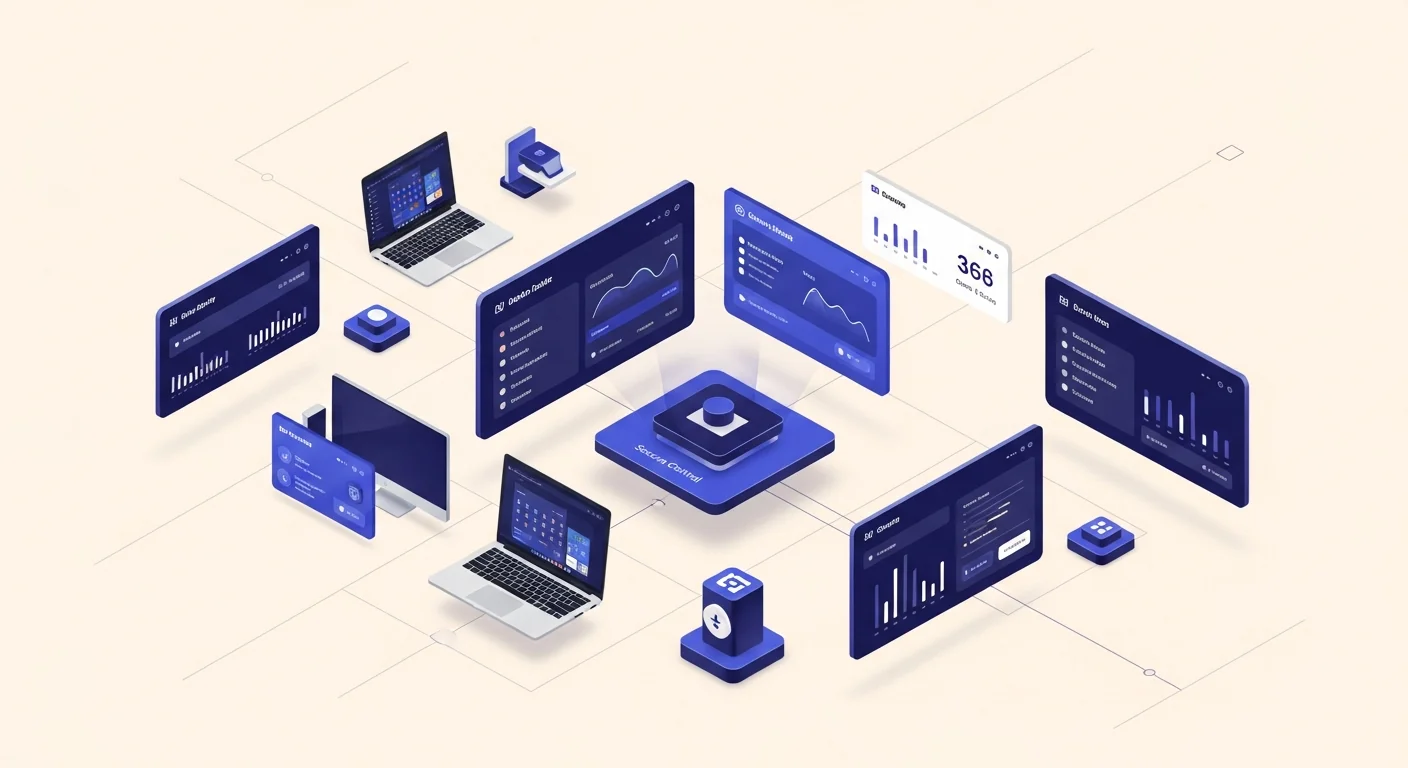
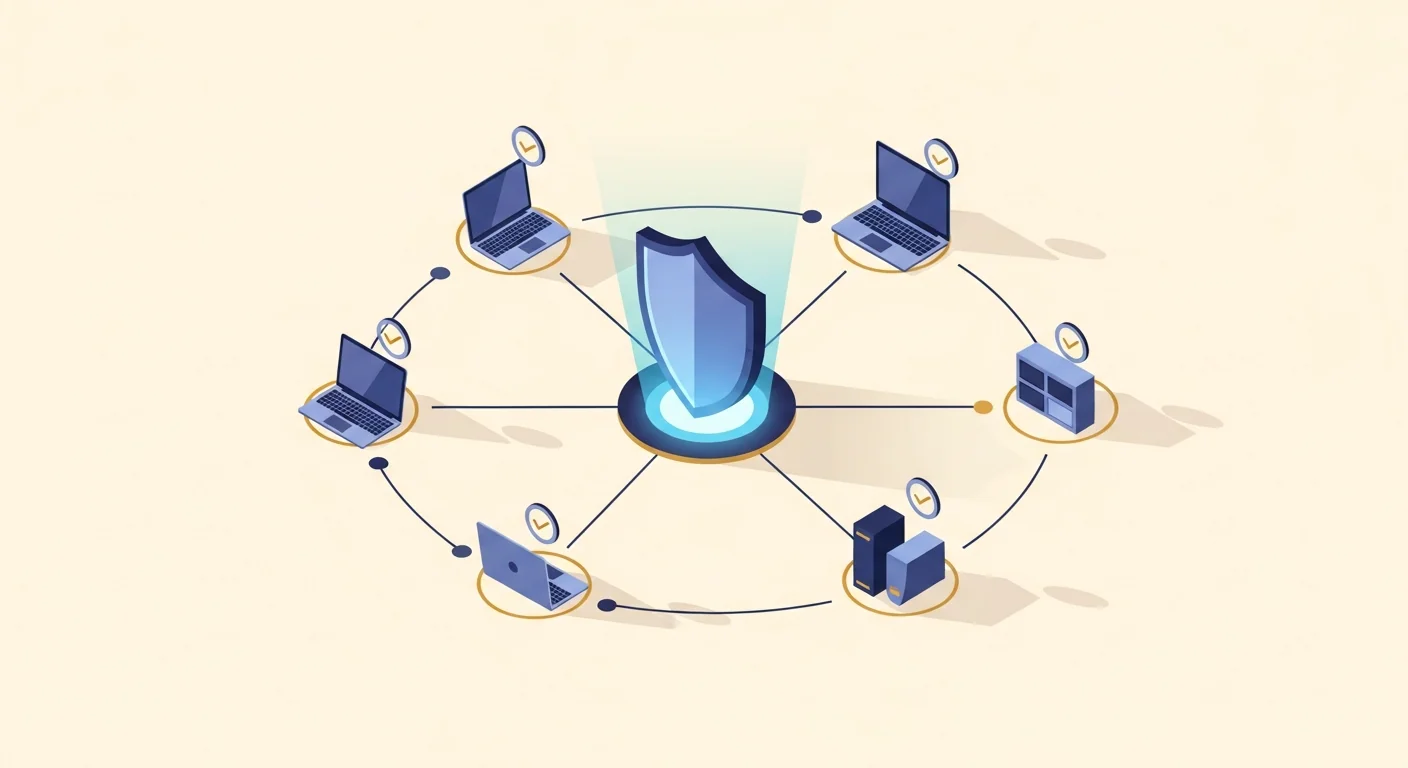
Browser restriction features
- Content filter categories - Toggle blocking for adult, gambling, drugs, piracy, proxy/VPN-bypass, social, streaming, gaming, and more using managed hosts-file block lists that fail to resolve system-wide.
- Disable incognito & InPrivate - Force IncognitoModeAvailability off in Chrome and InPrivate off in Edge so users can't browse around history and audit by opening a private window.
- Block extensions - Set the extension install blocklist to all, so side-loaded VPNs, ad-blockers, proxy tools, and rogue add-ons can't be installed in Chrome or Edge.
- Disable developer tools - Turn off the F12 inspector in Chrome and Edge so users can't edit page rules, unhide fields, or bypass site restrictions from DevTools.
- Block downloads - Set download restrictions to block all file downloads in Chrome and Edge for kiosk and data-loss-prevention scenarios, and lock the download folder where downloads are allowed.
- Homepage, allow & block lists - Force a start page, block specific hostnames via the hosts file, or run allowlist-only mode where every site except your approved URL patterns is blocked.
- Kiosk & SafeSearch - Launch Chrome full-screen on a single URL as a single-purpose terminal, and enforce Google, Bing, and YouTube safe-search modes across the fleet.
- Browser hardening - Disable the built-in password manager, autofill for addresses and cards, account sync, saved history, and first-run bookmark import across Chrome and Edge, mirrored into Firefox.
Who uses CtrlOne browser restrictions
- Schools & libraries - Keep shared and student PCs on safe content with category filters, SafeSearch, and blocked incognito and extensions, so young users can't reach adult, gambling, or piracy sites or quietly turn the filter off.
- Call centers & BPOs - Stop downloads, private browsing, and non-work sites on agent workstations to protect customer data and keep staff focused, with allowlist-only browsing for the systems agents actually need.
- Healthcare & finance - Harden browsers by disabling saved passwords, autofill, and sync on endpoints that handle sensitive records, reducing the chance of credentials or card data leaking through a shared or lost machine.
- Kiosks & public terminals - Run a single URL in kiosk mode with allowlist-only browsing so the PC does one job and nothing else, with no address bar, extensions, or downloads to wander off into.
- Corporate IT - Cut productivity drain and web-borne risk fleet-wide by filtering streaming, gaming, and social categories with one policy, then adjust or roll it back centrally as needs change.
CtrlOne vs built-in browser controls
| Capability | CtrlOne | Browser built-in controls |
|---|---|---|
| Central management | One web console for the whole fleet | Configured per browser, per machine |
| Category web filtering | Adult, gambling, piracy, social, and more | No built-in category filter |
| Block incognito & extensions | Enforced via managed policy | User can re-enable locally |
| Cross-browser coverage | Chrome, Edge, and mirrored to Firefox | Settings don't carry across browsers |
| System-wide DNS filtering | CleanBrowsing Family DNS on every adapter | None - browser-scoped only |
| Tamper & offline enforcement | Protected agent, fail-closed offline | Cleared by resetting the browser |
| Audit trail | Tamper-evident hash-chained log | No central record of changes |
Browser restriction FAQs
Which browsers does CtrlOne restrict?
CtrlOne applies managed policy to Google Chrome and Microsoft Edge, and mirrors browser-hardening settings into Mozilla Firefox so the same rules apply there too. Category and URL filtering works below the browser at the hosts-file and DNS level, so it covers every browser and app on the PC.
Does filtering work outside the browser?
Yes. Category and URL blocks use the Windows hosts file, and Family DNS filtering runs at the network-adapter level, so blocked hosts fail to resolve in every browser and app - not only Chrome or Edge. That closes the gap where a user switches to a less-managed browser to escape the filter.
Can users bypass the filter with incognito or a VPN extension?
No. CtrlOne disables incognito and InPrivate, blocks all extension installs, and can block known proxy and VPN-bypass sites, closing the common workarounds. Developer tools are also disabled so users can't unhide fields or edit page rules.
Can I allow only specific websites?
Yes. Allowlist-only mode permits just the URL patterns you approve and blocks everything else in Chrome and Edge - a strict, kiosk-style browsing setup ideal for public terminals and single-purpose PCs.
What happens when the device goes offline?
The tamper-proof agent keeps enforcing browser policy and applies offline fail-closed protection after a window you configure, so filtering doesn't disappear off-network. A laptop taken home stays as locked down as it was in the office.
Can I enforce SafeSearch on search engines?
Yes. CtrlOne enforces Google and Bing SafeSearch and YouTube Restricted Mode through managed policy so search results stay family-safe by default, without relying on each user to switch it on.
Does browser hardening remove saved passwords?
Hardening disables the built-in password manager, autofill, sync, and history going forward. You can also push a one-time action to clear saved passwords and browsing data on shared PCs, which is useful when repurposing a machine or offboarding a user.
Lock down browsing on every Windows PC
Filter web content, close the bypass routes, and harden Chrome, Edge, and Firefox from one console. Explore the browser feature catalogue or get in touch for a walkthrough.