Office Device Restrictions
CtrlOne gives office computers a sensible, enforced baseline. Restrict risky apps, control USB, limit browsing, and lock the settings employees do not need - all from one web console and kept in place by a tamper-proof agent, without getting in the way of real work.
What are office device restrictions?
Office device restrictions are the baseline of rules a business applies to employee computers so that everyday work stays safe and consistent. The goal is not to lock people out of their jobs - it is to remove the sharp edges: the ability to copy data onto a thumb drive, install unmanaged software, weaken security settings, or wander into system tools that break the machine. A good office baseline is mostly invisible to a productive employee and firmly in the way of the actions that create risk.
CtrlOne applies that baseline centrally instead of trusting each PC to be configured right. A lightweight, tamper-proof agent runs as a protected system service on every Windows 10 and Windows 11 machine and checks in about every 30 seconds. From a browser you set USB storage to off, read-only, or blocked, restrict or block specific applications, limit browsing and downloads, and lock Settings, the Control Panel, Task Manager, and the registry editor where employees do not need them. The Office Baseline template gives you a balanced starting point in one click, and you tune it per team.
Because enforcement lives in the agent, restrictions hold on laptops that spend their days off the corporate network and fail closed after a configurable window, and the protected service blocks documented disable vectors so an employee cannot quietly loosen the baseline. CtrlOne works on standalone and domain-joined machines with no Active Directory required, applies app control via AppLocker or WDAC with an SRP and IFEO fallback on Home and Pro, versions every policy with one-click rollback, and records changes in a tamper-evident audit log. It enforces through Windows policy and service control only - it never renames executables or deletes files.
Why set office restrictions with CtrlOne
- A baseline that does not slow work - Remove the risky actions - USB data-out, unmanaged installs, weakened settings - while leaving the tools employees actually use fully working.
- Close the data-out path - Set USB storage to off, read-only, or blocked so company data cannot walk out on a thumb drive, while keyboards, mice, and printers keep working.
- Consistent across every PC - Apply the same baseline to teams and groups from one console, ending the configuration drift that comes from setting each machine up by hand.
- Holds on remote laptops - Enforcement lives on the device, so restrictions hold off the corporate network and fail closed after a configurable window, keeping remote workers within the baseline.
- Employees cannot loosen it - The protected agent blocks documented disable vectors and re-applies policy on startup, so the baseline is enforced rather than merely recommended.
- No domain or server needed - CtrlOne works on standalone and domain-joined machines with no Active Directory or Group Policy Editor, so a lean team gets a corporate baseline without heavy infrastructure.
- Provable and reversible - Every change is versioned with one-click rollback and recorded in a tamper-evident log, so you can demonstrate the baseline and undo a mistake instantly.

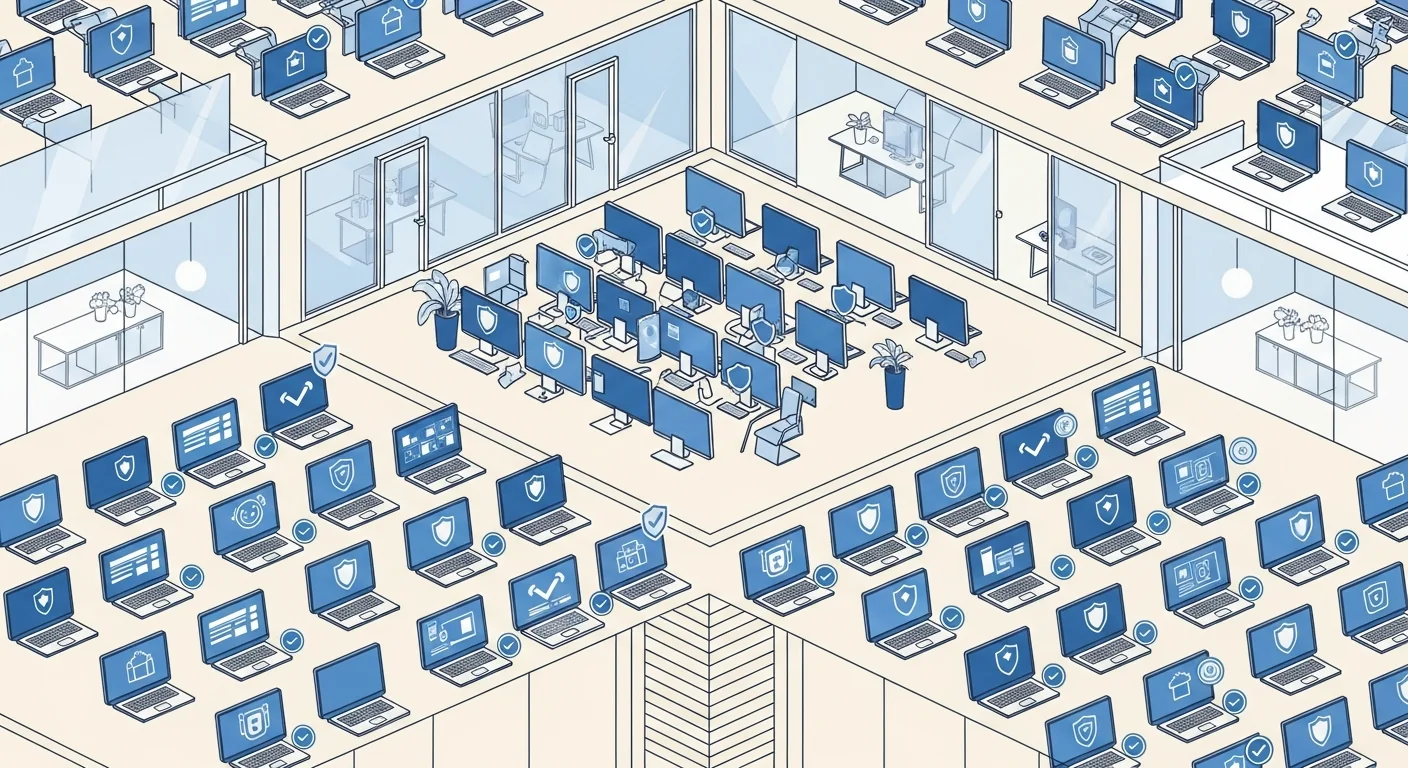
Office device restriction features
- USB and removable media control - Set removable storage to off, read-only, or blocked and allow or deny device classes so office PCs cannot leak data through the USB port.
- Application restrictions - Block risky or unwanted applications - or restrict machines to an approved set - with layered enforcement that covers Home and Pro as well as Enterprise and Education.
- Browsing and download control - Limit browsing to appropriate destinations and block risky downloads across Chromium browsers from the central policy.
- Settings and system-tool lockdown - Disable Settings, the Control Panel, Task Manager, Run, and the registry editor where employees do not need them, to prevent reconfiguration.
- Team-based assignment - Apply different baselines to different teams so finance, frontline, and executive machines each get the restrictions that fit them.
- Office Baseline template - Deploy a balanced corporate hardening bundle in one click as a starting point, then tune the individual restrictions per group.
- Scheduled restriction windows - Use the auto-scheduler to vary restrictions by time of day where a team needs different rules during and outside working hours.
- Versioned and audited - Every change snapshots the prior state for one-click rollback and is written to a tamper-evident audit log.
Who sets office restrictions with CtrlOne
- Small & mid-size businesses - Get a corporate hardening baseline on Windows Home and Pro from a simple console, with no domain, server, or Group Policy expertise required.
- Finance & legal teams - Enforce read-only or blocked USB and app restrictions on machines handling sensitive data to cut insider exfiltration risk.
- Remote & hybrid workforces - Keep the baseline enforced on laptops that spend most of their time off the corporate network, with offline fail-closed protection.
- Frontline & operations - Lock reception, warehouse, and shop-floor machines to their jobs so shared and single users cannot install software or change configuration.
- Regulated industries - Reduce risk on sensitive workstations and produce a tamper-evident record of the enforced baseline for internal review.
CtrlOne vs Group Policy office baseline
| Capability | CtrlOne | Group Policy baseline |
|---|---|---|
| Central web console | Yes - baselines per team from a browser | GPMC plus domain join required |
| Works on Home & Pro | Registry policy on every edition | gpedit and AppLocker limited by edition |
| Offline enforcement | Holds offline, fails closed | No refresh until back on domain |
| Tamper resistance | Protected agent blocks disable vectors | Local admin can edit or revert |
| USB data control | Off, read-only, or block per class | Extra device-install rules to craft |
| Scheduling | Built-in auto-scheduler | Requires scripting or task setup |
| Rollback & audit | Versioned, one-click, logged | Manual GPO history at best |
Office device restriction FAQs
What does an office baseline restrict?
A typical baseline sets USB storage to off, read-only, or blocked, blocks risky or unwanted applications, limits browsing and downloads, and locks Settings, the Control Panel, Task Manager, Run, and the registry editor where employees do not need them. Each restriction is independent, so you enforce only what fits your business.
Will restrictions get in the way of employees' work?
They should not. The aim is to remove risky actions - USB data-out, unmanaged installs, weakened settings - while leaving the tools employees use fully working. You can assign different baselines per team so each group gets rules that fit its role.
Do office restrictions apply to remote laptops off the network?
Yes. Enforcement lives on the device, so the baseline holds off the corporate network and fails closed after a configurable offline window, keeping remote and hybrid workers within the same restrictions.
Can an employee turn the restrictions off?
No. The agent runs as a protected system service, blocks documented disable vectors, and re-applies policy on startup, so the baseline cannot be quietly loosened by an employee or reverted by a local admin.
Do I need Active Directory or a domain?
No. CtrlOne works on standalone and domain-joined machines with no Active Directory, server, or Group Policy Editor required, so a small business can enforce a corporate baseline from one web console.
Can I apply different rules to different teams?
Yes. You assign baselines to teams or groups, so finance, frontline, and executive machines each get the restrictions that suit them, and you can roll any group back to a known-good policy with one click.
Give office computers a baseline that sticks
See how CtrlOne enforces an app, USB, and browsing baseline across employee PCs from one console, on or off the network, with a tamper-proof agent. Explore the full feature catalogue or get in touch for a walkthrough.