School & Classroom Device Security Software
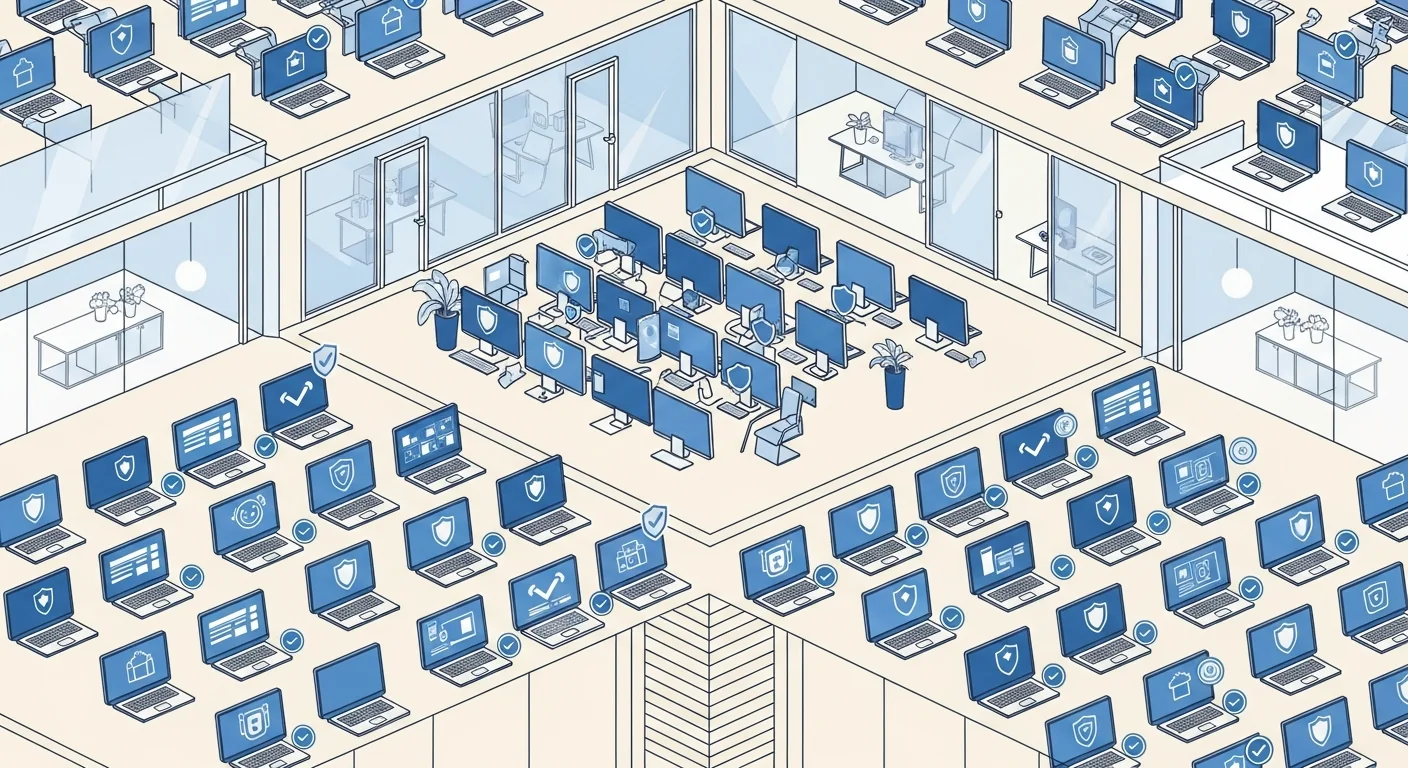
CtrlOne keeps school computer labs, shared classroom PCs, and 1:1 student devices focused on learning. Filter web content, block games and unauthorized apps, lock USB storage, and reset any shared machine to a clean baseline in one click.
What is school device security?
School device security is the practice of keeping shared and student-issued computers safe, focused, and consistent across a whole campus. In a lab or a 1:1 program, dozens of students touch the same machines every week, so the challenge is not just stopping malware - it is stopping distraction, off-task browsing, unauthorized software, and the slow configuration drift that turns a clean lab into a support headache by mid-semester.
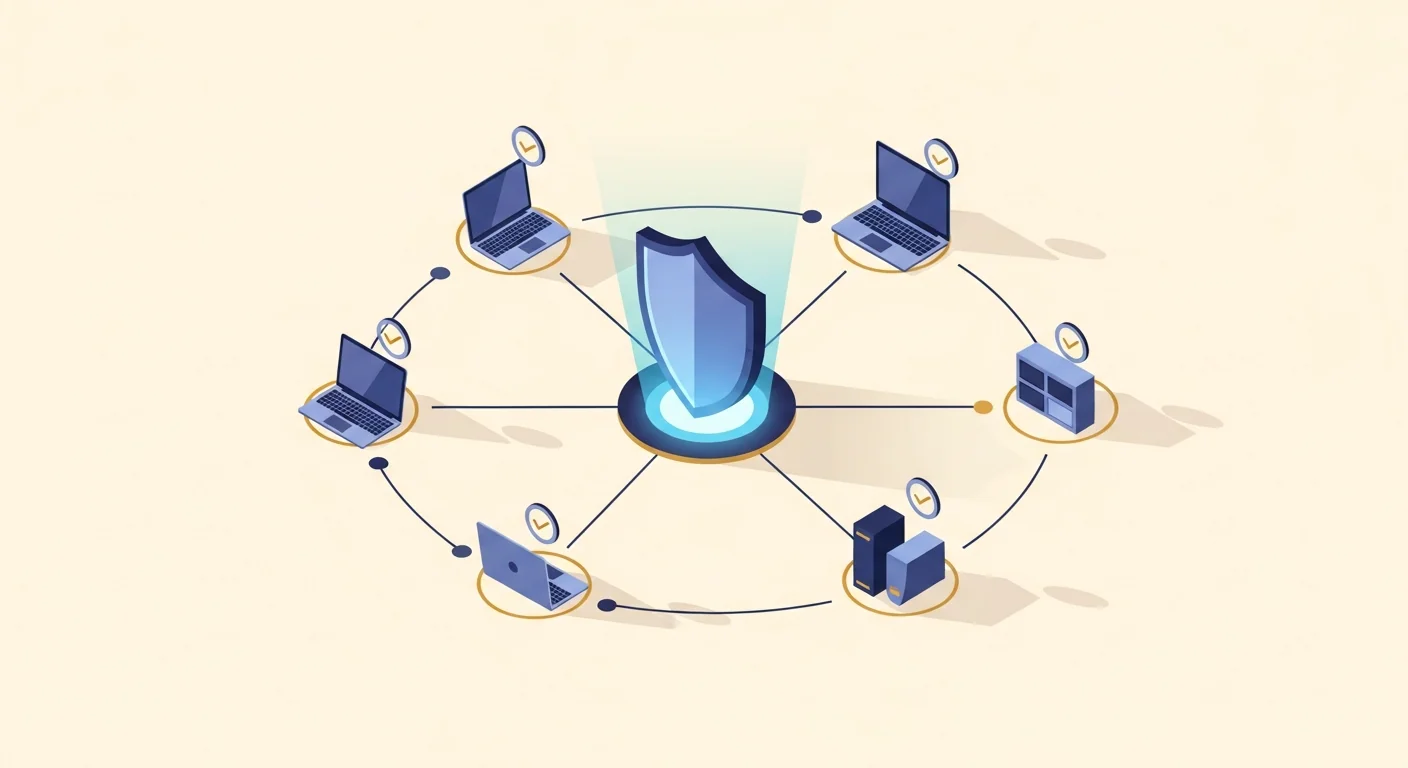
CtrlOne addresses this with a lightweight agent that runs as a protected system service on every Windows 10 and Windows 11 device and reports to a web console at ctrlone.online. From that console, IT staff push policies to an entire lab, grade level, or campus at once: content-filter categories that block adult, gambling, drugs, piracy, social, streaming, and gaming sites; SafeSearch and DNS filtering; browser lockdown that removes Incognito, extensions, developer tools, and downloads; and application blocks that stop games and installers by name or signature.
Because the agent enforces policy even when a device leaves the network and applies offline fail-closed protection after a window you configure, a student laptop stays locked down at home just as it is in the building. When a shared PC does get messed up, the restore module captures a known-good baseline and returns the machine to that clean state in one click - no re-imaging cart, no reinstall from a USB stick, no lost class time.
Why schools choose CtrlOne
- Keep students on task - Block games, streaming, social media, and unapproved apps so lab and classroom time stays focused on the lesson rather than distractions.
- Safer browsing by default - Category-based content filtering, enforced SafeSearch, DNS filtering, and allow/blocklists give age-appropriate web access on every managed device.
- One-click reset for shared PCs - Capture a clean baseline once, then restore any shared machine to that exact state in seconds instead of pulling it for a full re-image.
- Class and exam scheduling - The auto-scheduler applies tighter restrictions during class periods or testing windows and relaxes them afterward, with no manual toggling.
- Campus-wide consistency - Push one policy to a lab, a grade, or the whole district from a single console so every device enforces the same rules.
- Tamper-proof enforcement - The agent blocks documented uninstall and disable vectors, so curious students can't turn protection off or roll back the lockdown.
Classroom security features
- Content filter categories - Block adult, gambling, drugs, piracy, social, streaming, and gaming categories, and layer on custom allow/blocklists per school or lab.
- Browser lockdown & SafeSearch - Force SafeSearch and DNS filtering, set a fixed homepage, and remove Incognito, extensions, developer tools, and browser downloads.
- Kiosk mode - Lock a shared PC to a single approved app or site for testing stations, library catalogs, and check-in terminals.
- Block games & unauthorized apps - Stop games, installers, and off-task software by name or signature using AppLocker deny, SRP, IFEO, and DisallowRun.
- USB storage lockdown - Set USB mass storage to off, read-only, or block while keeping keyboards, mice, and printers working for normal classroom use.
- Auto-scheduler for class windows - Apply and remove restrictions automatically on a daily time window so exam and class-period rules turn on and off on their own.
- Restore module - Capture a clean, approved baseline and return shared machines to it with one click, undoing whatever a prior student changed.
- Lab / Classroom template - Start from the built-in Lab-Classroom policy template, then tailor it to each room and roll it out across the fleet in one click.
Where schools deploy CtrlOne
- Computer labs - Standardize every machine in a shared lab with the same filtering, app blocks, and one-click restore between classes.
- 1:1 student laptops - Keep take-home devices filtered and locked down off-network with offline fail-closed enforcement.
- Exam & testing centers - Use kiosk mode and scheduled lockdowns to hold devices to a single approved app during assessments.
- Library & front-desk PCs - Lock public and check-in terminals to approved sites and reset them to a clean state on demand.
- District IT teams - Manage labs and student devices across many schools from one multi-tenant console with per-site branding.
CtrlOne vs manual lab imaging
| Capability | CtrlOne | Manual lab imaging |
|---|---|---|
| Reset a shared PC | One-click restore to a clean baseline | Re-image from a cart or USB stick |
| Web content filtering | Category filter, SafeSearch, and DNS | Router-only, easily bypassed |
| Block games & apps | By name or signature, fleet-wide | Removed by hand, machine by machine |
| USB storage | Off, read-only, or block per policy | Left open or fully disabled in BIOS |
| Class & exam windows | Scheduled automatically | Toggled manually each period |
| Campus rollout | One policy to every device | Configured per lab, per image |
| Off-network devices | Offline fail-closed enforcement | Unmanaged once they leave |
School device security FAQs
Which devices does CtrlOne support?
CtrlOne manages Windows 10 and Windows 11 desktops and laptops, which covers most school lab and 1:1 hardware. It does not manage macOS, Chromebooks, or mobile devices.
Can students bypass the content filter?
The filter enforces categories, SafeSearch, and DNS filtering at the device, and the browser lockdown removes Incognito, extensions, and developer tools, so common bypass routes are closed. The tamper-proof agent stops students from disabling it.
How do we reset a shared PC between classes?
Capture a clean baseline with the restore module once, then restore any machine to that state in one click. Whatever a prior student changed is rolled back without re-imaging.
Can rules differ during exams?
Yes. The auto-scheduler applies tighter restrictions during class or testing windows and relaxes them afterward automatically, and kiosk mode can hold a device to a single approved app.
What happens when a 1:1 laptop goes home?
The agent keeps enforcing its policy off-network and, after a window you set, applies offline fail-closed protection so the device can't be left unfiltered or unlocked.
Do we need a server on site?
No. The console is web-based and you install only the agent on each PC. An on-premise LAN server option is available for schools that run fully offline networks.
Can one district manage many schools?
Yes. The multi-tenant console keeps each school's data, quotas, and branding isolated while letting a central IT team push consistent policy everywhere.
Secure your labs and student devices
See how CtrlOne filters web content, blocks games, schedules exam lockdowns, and resets shared PCs to a clean baseline. Explore the feature catalogue or get in touch for a walkthrough.