Classroom Management Software
CtrlOne keeps classroom and lab computers focused on the lesson. Block games, social media, and distractions, limit browsing to the sites a class needs, and schedule lockdown to match class periods - all from one web console, enforced by a tamper-proof agent.
What is classroom management software?
Classroom management software helps a school keep shared computers pointed at learning instead of at games, chat, and the wider internet. In a lab, dozens of students touch the same machines every day, and without controls those PCs drift: someone installs a game, someone changes the settings, someone plugs in a drive, and the next class inherits the mess. Classroom controls set the rules once - what can run, what can be reached, what stays locked - so every lesson starts from the same clean, focused state.
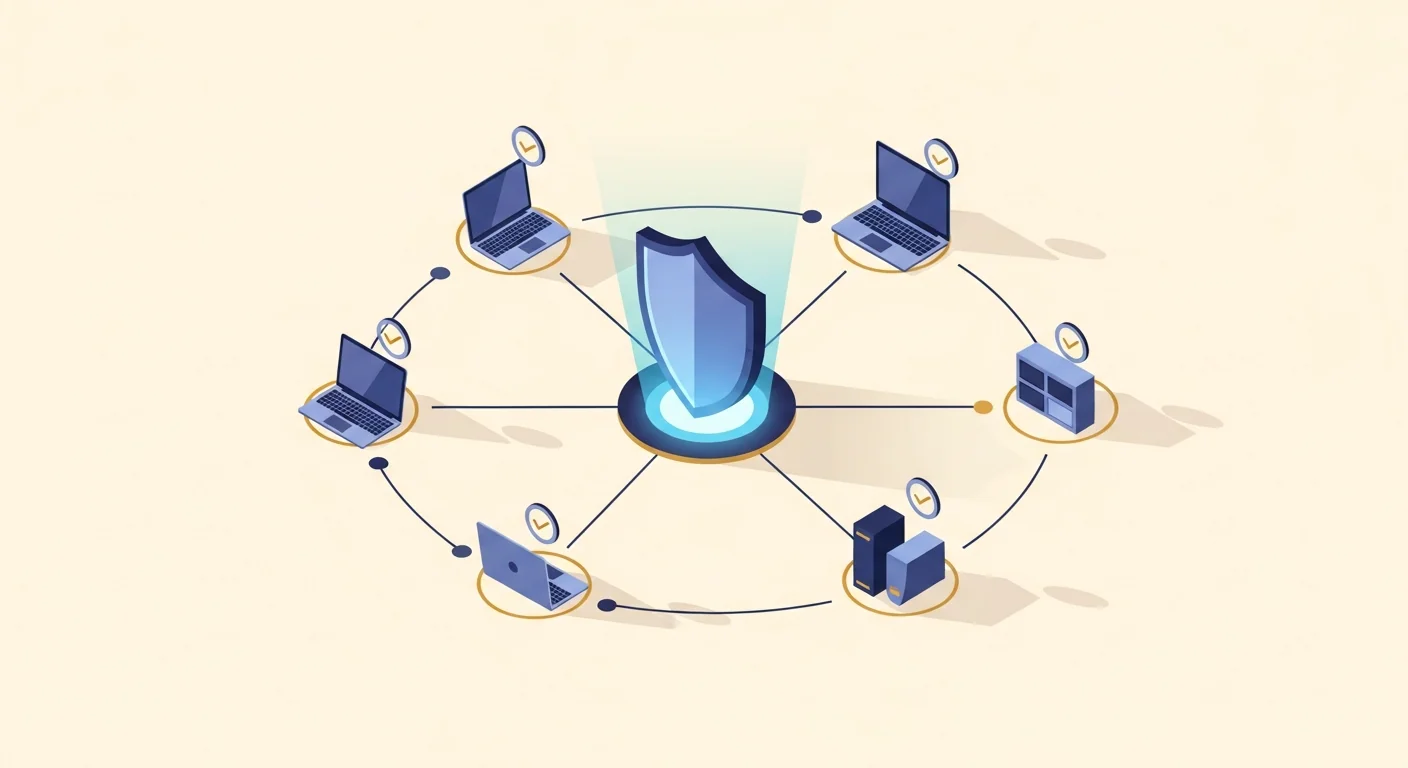
CtrlOne enforces those rules centrally rather than machine by machine. A lightweight, tamper-proof agent runs as a protected system service on every Windows 10 and Windows 11 PC and checks in about every 30 seconds. From a browser you block distracting applications, restrict browsing to approved educational sites, lock Settings and the Control Panel, and control USB storage on shared lab machines. The auto-scheduler ties restrictions to the timetable, so a lab can be locked tight during a class period and relaxed for staff outside it, without a teacher touching each PC.
Because enforcement lives in the agent, the rules hold when a laptop leaves the network and fail closed after a configurable window, and the protected service blocks documented disable vectors so students cannot switch controls off or reboot their way out. The Lab / Classroom template gives you a hardened starting point in one click, policies are versioned with one-click rollback, and every change is written to a tamper-evident audit log. CtrlOne enforces through Windows policy and service control only - it never renames executables or deletes files - so a managed lab PC stays a normal Windows PC, just a focused one.
Why manage classrooms with CtrlOne
- Keep the class on task - Block games, social media, and other distractions so students focus on the lesson instead of finding ways around the computer's intended use.
- Lock to class periods - The auto-scheduler applies restrictions during a class period and relaxes them afterwards automatically, so a teacher does not have to lock and unlock machines by hand.
- Every lesson starts clean - Shared lab PCs hold the same policy for every class, so drift from the previous group does not carry over into the next lesson.
- Approved sites only - Restrict browsing to educational destinations and block downloads, keeping the web useful for learning without opening the whole internet.
- Students cannot switch it off - The protected agent blocks documented disable vectors and re-applies policy on startup, so students cannot disable the controls or reboot their way past them.
- Works on any school PC - Registry-based policy enforces on Windows Home and Pro as well as Education, so a school is not forced onto a specific edition to manage its labs.
- Fast setup with a template - The Lab / Classroom template gives a hardened baseline in one click, so a new lab is ready without building a policy from scratch.

Classroom management features
- Block games and distractions - Stop distracting applications from launching on lab machines while keeping the educational tools a lesson needs reachable.
- Class-period scheduling - Use the auto-scheduler to tie lockdown to the timetable so restrictions apply during lessons and lift outside class hours automatically.
- Approved-site browsing - Restrict browsing to educational sites and block downloads and extension installs across Chromium browsers on shared computers.
- Exam and focus lockdown - Tighten a lab to a minimal set of allowed apps and sites for a test or focused session, then roll back to the normal policy with one click afterwards.
- Settings and system tools off - Disable Settings, the Control Panel, Task Manager, and Run so students cannot change lab machine configuration.
- USB storage control - Set removable storage to off, read-only, or blocked so personal drives and phones cannot be used on shared lab PCs while input devices keep working.
- Lab / Classroom template - Apply a curated education hardening bundle in one click as a baseline, then adjust individual restrictions to fit the room.
- Versioned and auditable - Every policy change snapshots the prior state for one-click rollback and is written to a tamper-evident audit log.
Where CtrlOne classroom controls fit
- K-12 computer labs - Keep shared classroom PCs focused during lessons, block games and social media, and reset to a clean policy for the next class.
- Universities & colleges - Apply department-specific rules to open-access and teaching labs while allowing the software each course requires.
- Training centers - Lock course machines to the tools and sites a session needs and schedule the lockdown to match training hours.
- Exam & assessment rooms - Tighten machines to a minimal allowed set for a test, then roll back to normal with one click once the exam is over.
- Libraries with study PCs - Keep student study computers useful and safe by limiting browsing, blocking downloads, and controlling USB on shared machines.
CtrlOne vs manual lab management
| Capability | CtrlOne | Manual / GPO lab setup |
|---|---|---|
| Central web console | Yes - one policy for every lab PC | Per-machine or domain GPO setup |
| Class-period scheduling | Built-in auto-scheduler | Manual lock and unlock, or scripting |
| Works on Home & Pro | Registry policy on every edition | gpedit missing on Home |
| Block games | Layered app control on every edition | AppLocker limited to some editions |
| Tamper resistance | Protected agent, re-applies on boot | Students can revert local settings |
| Offline enforcement | Holds offline, fails closed | No refresh until back on domain |
| Rollback | Versioned, one-click | Manual reconfiguration |
Classroom management FAQs
Can I block games but keep learning apps working?
Yes. You block the distracting applications you choose while the educational tools a lesson needs stay reachable. App control layers AppLocker or WDAC on Education editions and falls back to SRP and IFEO on Home and Pro, so blocking works on every school PC.
Can lockdown follow the class timetable automatically?
Yes. The auto-scheduler applies restrictions during a class period and lifts them afterwards on a daily timetable, so a teacher does not have to lock and unlock the lab by hand each lesson.
Can students disable the controls or reboot past them?
No. The agent runs as a protected system service, blocks documented disable vectors, and re-applies policy on startup, so students cannot switch the controls off or clear them by restarting the PC.
Does it work on our existing school computers?
Yes. CtrlOne runs on every Windows 10 and Windows 11 edition, including Home and Pro, using registry-based policy rather than requiring the Group Policy Editor, so you can manage the labs you already have.
Can I set up a stricter mode for exams?
Yes. You can tighten a lab to a minimal set of allowed apps and sites for a test or focused session, then roll back to the normal classroom policy with one click once it is finished.
Can I stop students using personal USB drives?
Yes. You can set USB storage to off, read-only, or blocked on shared lab PCs so personal drives and phones cannot be used, while keyboards, mice, and other input devices keep working.
Keep classroom computers on the lesson
See how CtrlOne blocks distractions, limits browsing, and schedules lockdown to class periods across your Windows labs from one console. Explore the full feature catalogue or get in touch for a walkthrough.