Shared PC Protection
CtrlOne keeps shared Windows PCs safe and consistent no matter how many people use them. Restrict apps, USB, and settings, keep every machine on the same policy, and stop one user from changing the computer for the next - all from one web console.
What is shared PC protection?
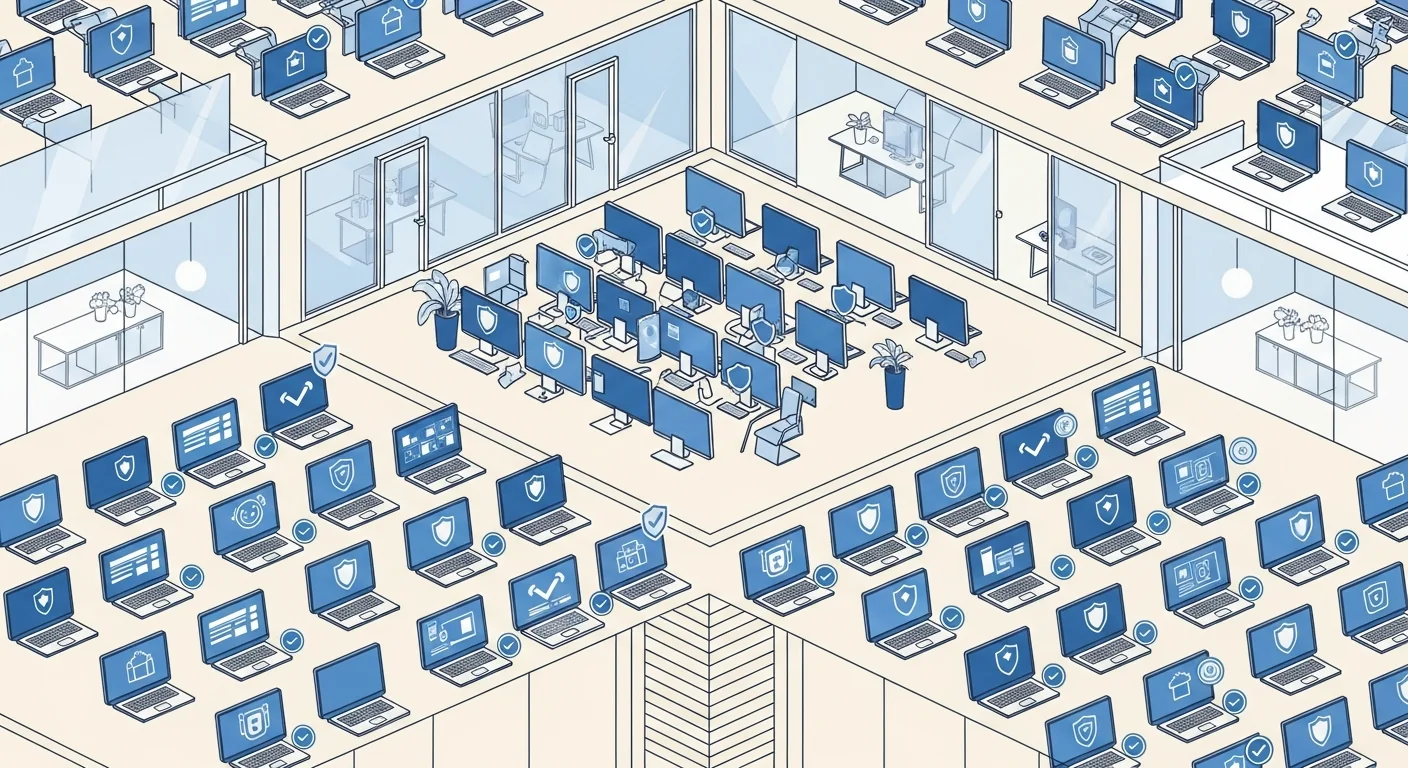
A shared PC is any computer that many different people sit down at - a hot desk, a break-room machine, a nurses' station, a training terminal, a front desk. Shared machines are hard to keep healthy because no one owns them: users install software, change settings, plug in drives, and leave clutter, so the PC drifts further from its intended state with every session. Shared PC protection sets firm boundaries so that whatever one person does, the machine stays safe, consistent, and ready for the next user.
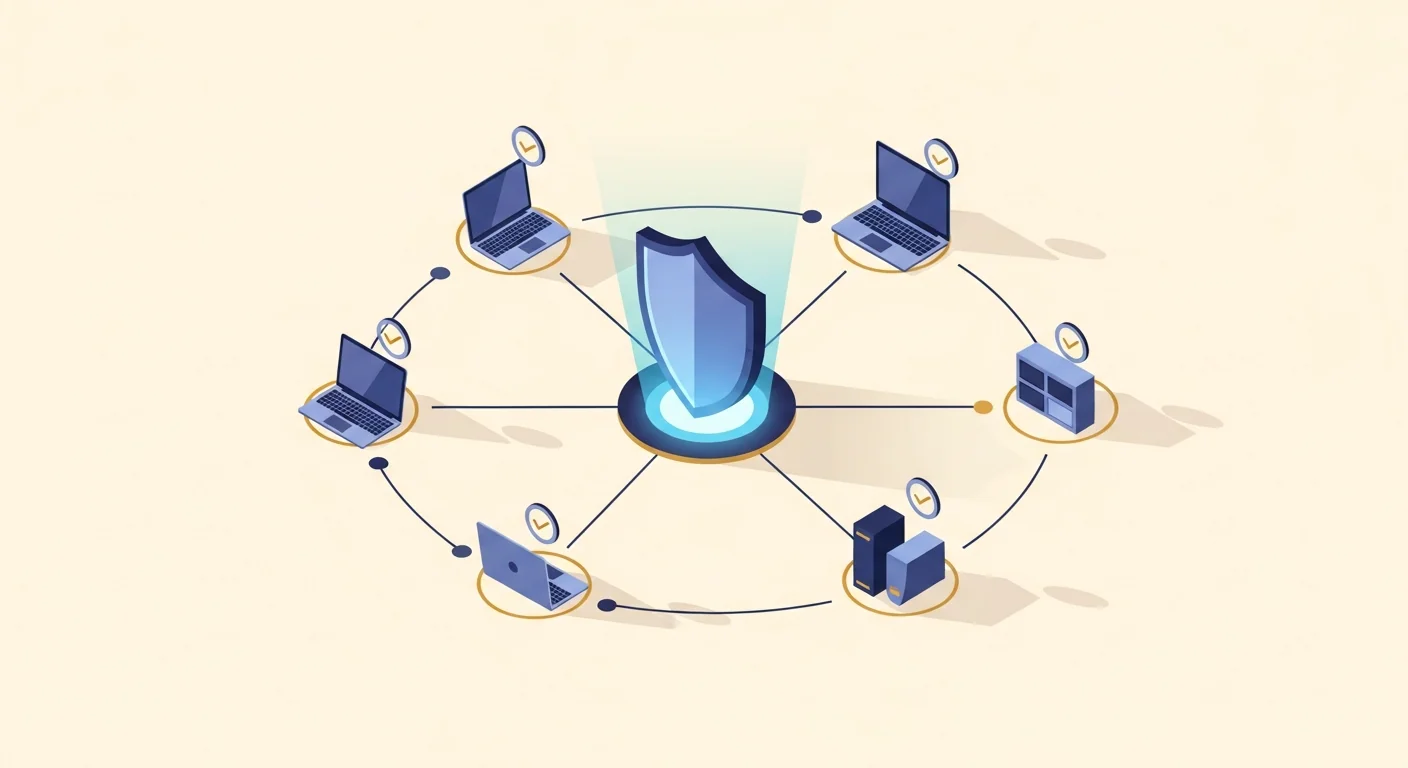
CtrlOne enforces those boundaries centrally. A lightweight, tamper-proof agent runs as a protected system service on every Windows 10 and Windows 11 PC and checks in about every 30 seconds. From a browser you restrict which applications can run, set USB storage to off, read-only, or blocked, limit browsing, and lock Settings, the Control Panel, Task Manager, and the registry editor - so a shared user cannot install software, exfiltrate data, or reconfigure the machine. The Office Baseline template gives you a sensible starting point for shared workstations in one click.
Because enforcement lives in the agent, the policy holds when a device is offline and fails closed after a configurable window, and the protected service blocks documented disable vectors so no user can turn protection off or reboot their way out. Policies are versioned with one-click rollback and recorded in a tamper-evident audit log, and the auto-scheduler can vary rules by time of day for machines that serve different groups at different hours. CtrlOne enforces through Windows policy and service control only - it never renames executables or deletes files - so a shared PC stays a normal, fully working computer within the boundaries you set.
Why protect shared PCs with CtrlOne
- Same machine for every user - Hold a consistent policy on every shared PC so one person's changes do not carry over and break the experience for the next user.
- No unwanted software - Restrict which applications can launch so shared users cannot install games, tools, or unmanaged software on a communal machine.
- Close the data-out path - Set USB storage to off, read-only, or blocked so shared machines cannot be used to copy sensitive data onto personal drives.
- Settings stay put - Lock Settings, the Control Panel, Task Manager, and the registry editor so a shared user cannot reconfigure or weaken the machine.
- Cannot be switched off - The protected agent blocks documented disable vectors and re-applies policy on startup, so protection is not something a user can quietly remove.
- Enforced offline - Rules live on the device, hold without a network connection, and fail closed after a configurable window, so a shared laptop stays protected off the network.
- One console for the fleet - Manage every shared PC from a browser with no per-machine edits and no domain required, so a lean team can keep a fleet consistent.
Shared PC protection features
- Application launch control - Restrict shared machines to approved apps or block unwanted ones with layered enforcement that covers every Windows edition.
- USB and removable media control - Set removable storage to off, read-only, or blocked and allow or deny device classes so shared PCs cannot leak data through the USB port.
- Settings and system-tool lockdown - Disable Settings, the Control Panel, Task Manager, Run, and the registry editor so users cannot reconfigure a shared machine.
- Browsing restrictions - Limit browsing to approved sites and block downloads on shared computers to reduce distraction and web-borne risk.
- Office Baseline template - Apply a curated shared-workstation hardening bundle in one click as a starting point, then tune the individual restrictions.
- Scheduled rule changes - Use the auto-scheduler to apply different rules at different times for machines that serve different groups through the day.
- Tamper-proof re-apply - The agent restores the policy on reboot and after tamper attempts, so a shared PC comes back up protected rather than open.
- Versioned and audited - Every change snapshots the prior state for one-click rollback and is written to a tamper-evident audit log.
Where CtrlOne shared PC protection fits
- Hot desks & shared offices - Keep desk-sharing machines on the same policy so each person finds a clean, protected PC regardless of who used it last.
- Nurses' stations & clinics - Protect point-of-care machines shared by staff, blocking software installs and USB data-out while keeping clinical tools working.
- Break rooms & common areas - Lock communal PCs to safe browsing and approved apps so casual use does not leave the machine broken or exposed.
- Training & meeting rooms - Hold a consistent, distraction-free setup on shared training terminals and reset it easily between sessions.
- Retail & warehouse floors - Keep shared operational PCs focused on their job and stop users installing software or plugging in personal drives.
CtrlOne vs manual shared-PC management
| Capability | CtrlOne | Manual / local accounts |
|---|---|---|
| Central web console | Yes - one policy for the fleet | Per-machine local configuration |
| Consistency across users | Policy re-applied every session | Drifts as users make changes |
| USB data-out control | Off, read-only, or block per class | All-or-nothing or none |
| Tamper resistance | Protected agent, re-applies on boot | Local admin can revert |
| Offline enforcement | Holds offline, fails closed | Depends on local setup only |
| No domain required | Works on standalone PCs | Central control usually needs a domain |
| Rollback & audit | Versioned, one-click, logged | Manual, no clear record |
Shared PC protection FAQs
How does CtrlOne keep a shared PC consistent?
The agent holds and re-applies the assigned policy, so whatever a user changes within their session, the machine's restrictions stay in place and the next user gets the same protected setup. You manage that policy centrally rather than reconfiguring each PC.
Can shared users install their own software?
Not when you enable application control. You can restrict shared machines to approved apps or block unwanted ones, using layered enforcement that works on Home and Pro as well as Enterprise and Education, so communal PCs stay free of unmanaged software.
Can I stop data being copied to USB on a shared PC?
Yes. You can set USB storage to off, read-only, or blocked and allow or deny device classes, so a shared machine cannot be used to copy sensitive files onto a personal drive while keyboards and mice keep working.
Can a user turn the protection off?
No. The agent runs as a protected system service, blocks documented disable vectors, and re-applies policy on startup, so protection cannot be quietly removed by a shared user or reverted by a local admin.
Do I need a domain to manage shared PCs?
No. CtrlOne works on standalone and domain-joined machines with no Active Directory or Group Policy Editor, so you can manage shared workgroup computers from one web console.
Does protection apply if a shared laptop goes offline?
Yes. Enforcement lives on the device, so the policy holds without a network connection and fails closed after a configurable offline window.
Keep shared PCs safe for every user
See how CtrlOne holds a consistent policy on every shared Windows machine, closes the USB data-out path, and stays enforced by a tamper-proof agent. Explore the full feature catalogue or get in touch for a walkthrough.