Public Access Computer Security
CtrlOne secures public-access Windows computers so anyone can use them safely and nothing carries over to the next person. Lock apps, USB, and settings, control browsing, and protect user privacy - all from one web console, enforced by a tamper-proof agent.
What is public access computer security?
A public-access computer is one that anyone can walk up to and use - a library catalogue and study PC, a lobby terminal, a community center machine, a government service desk. These computers face the widest possible range of users, from casual visitors to people actively trying to tamper, so they need firm boundaries: a visitor should be able to do the intended task safely, without harming the machine, reaching system internals, or leaving personal data behind for the next person to find.
CtrlOne secures public terminals as a central policy rather than a per-machine chore. A lightweight, tamper-proof agent runs as a protected system service on every Windows 10 and Windows 11 PC and checks in about every 30 seconds. From a browser you restrict which applications can run, lock Settings, the Control Panel, Task Manager, and the registry editor, limit browsing to approved destinations, and control USB storage. For a single-purpose terminal you can pin the browser to one site, and the Kiosk Lockdown template gives you a hardened public-use baseline in one click.
Because enforcement lives in the agent, security holds when a device is offline and fails closed after a configurable window, and the protected service blocks documented disable vectors so a member of the public cannot switch controls off or reboot their way past them. Policies are versioned with one-click rollback and recorded in a tamper-evident audit log, and the auto-scheduler can vary rules by opening hours. CtrlOne enforces through Windows policy and service control only - it never renames executables or deletes files - so a public PC stays a full Windows machine within safe limits.
Why secure public PCs with CtrlOne
- Safe for anyone to use - Set firm boundaries so any visitor can do the intended task without reaching system internals, installing software, or harming the machine.
- Nothing left behind - Control USB storage and lock down the machine so a member of the public cannot copy data out or leave personal files on a shared terminal.
- Protect the machine from tampering - Lock Settings, the Control Panel, and system tools and block app installs so a public PC cannot be reconfigured or repurposed.
- Focused browsing - Limit browsing to approved destinations, or pin a terminal to a single site, so a public machine shows only what it is meant to.
- Cannot be broken out of - The protected agent blocks documented disable vectors and re-applies policy on startup, so a reboot brings the terminal back up still secured.
- Works on any Windows edition - Registry-based policy enforces on Home and Pro as well as Enterprise and Education, so you can secure the machines an institution already owns.
- One console for every terminal - Manage all public machines from a browser with no per-machine edits and no domain required.

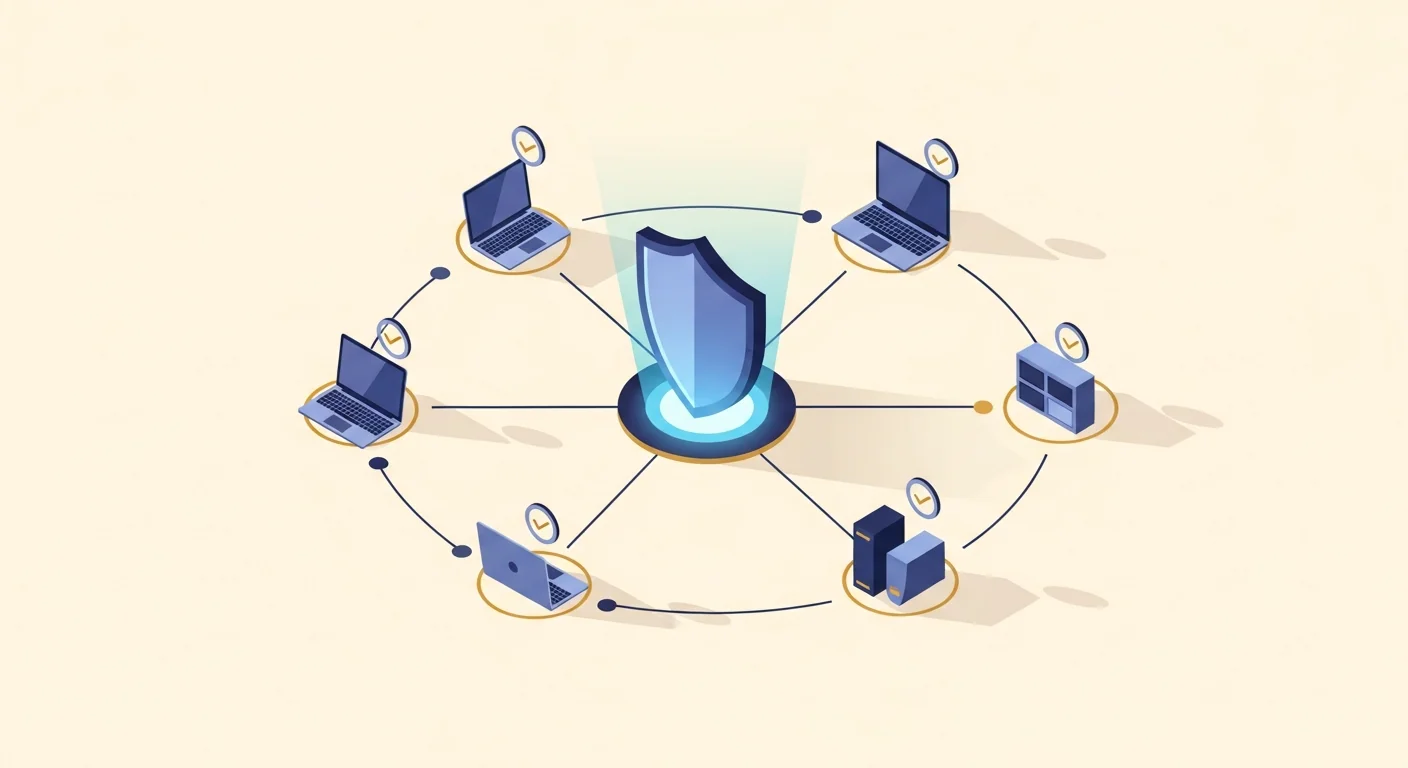
Public access computer security features
- Application launch control - Restrict public terminals to the apps they are meant to run and block everything else, with layered enforcement across every Windows edition.
- Settings and system-tool lockdown - Disable Settings, the Control Panel, Task Manager, Run, and the registry editor so the public cannot reconfigure a shared machine.
- Single-site or approved-list browsing - Pin a terminal to one site or limit it to an approved list, and block downloads and extension installs across Chromium browsers.
- USB storage control - Set removable storage to off, read-only, or blocked so data cannot be copied out or left behind through the USB port, while input devices keep working.
- Kiosk Lockdown template - Apply a hardened public-use baseline in one click, then tune it for a catalogue PC, a service desk, or a study machine.
- Scheduled by opening hours - Use the auto-scheduler to apply and lift lockdown on a daily timetable that matches when a location is open to the public.
- Tamper-proof re-apply - The agent restores the secured state on reboot and after tamper attempts, so a public terminal cannot be freed by restarting it.
- Versioned and audited - Every policy change snapshots the prior state for one-click rollback and is written to a tamper-evident audit log.
Where CtrlOne public PC security fits
- Libraries - Secure catalogue, study, and research PCs so patrons can browse and work safely without leaving data behind or tampering with the machine.
- Lobbies & reception - Lock lobby and visitor terminals to a sign-in or information task while blocking access to the desktop and settings.
- Government & service desks - Provide public service terminals that stay on the intended application and protect the privacy of each person who uses them.
- Community & recreation centers - Offer safe public browsing machines that hold a consistent, protected policy no matter who sits down at them.
- Museums & visitor centers - Pin interactive and information displays to a single site or app so visitors cannot reach the underlying Windows desktop.
CtrlOne vs manual public-PC setup
| Capability | CtrlOne | Manual / guest account |
|---|---|---|
| Central web console | Yes - one policy for every terminal | Per-machine manual setup |
| Clean between users | Policy re-applied every session | Drifts and needs reimaging |
| Single-site kiosk | Pin the browser to one site | Not built in |
| USB data control | Off, read-only, or block | Often left open |
| Tamper resistance | Protected agent, re-applies on boot | Public can reconfigure or reboot out |
| Works on Home & Pro | Registry policy on every edition | gpedit missing on Home |
| Rollback & audit | Versioned, one-click, logged | Manual, no record |
Public access computer security FAQs
How does CtrlOne protect a public terminal between users?
The agent holds and re-applies the assigned policy, so whatever one person does within a session, the machine's restrictions stay in place and the next user gets the same clean, secured setup. You manage that policy centrally for every terminal.
Can I pin a public PC to a single website?
Yes. For a single-purpose terminal you can pin the browser to one site so a public machine only ever shows the intended page, and you can block downloads and extension installs alongside it.
Can the public reach the desktop or change settings?
No, when the lockdown is enabled. You can disable Settings, the Control Panel, Task Manager, Run, and the registry editor and hide the desktop, so there is no obvious path from the intended app back into Windows.
Can someone break out by rebooting the machine?
No. The tamper-proof agent re-applies the secured state on startup and blocks documented disable vectors, so a reboot brings the terminal back up still locked rather than opening a way out.
Can I stop data being copied to or left on the machine via USB?
Yes. You can set USB storage to off, read-only, or blocked so a member of the public cannot copy data out or leave files behind through the USB port, while the terminal's own keyboard and mouse keep working.
Does it work on the computers a library already owns?
Yes. CtrlOne runs on every Windows 10 and Windows 11 edition, including Home and Pro, using registry-based policy rather than requiring the Group Policy Editor, so you can secure existing machines.
Make public computers safe for everyone
See how CtrlOne secures public-access Windows terminals, keeps them clean between users, and stays enforced by a tamper-proof agent. Explore the full feature catalogue or get in touch for a walkthrough.