Windows Kiosk Software
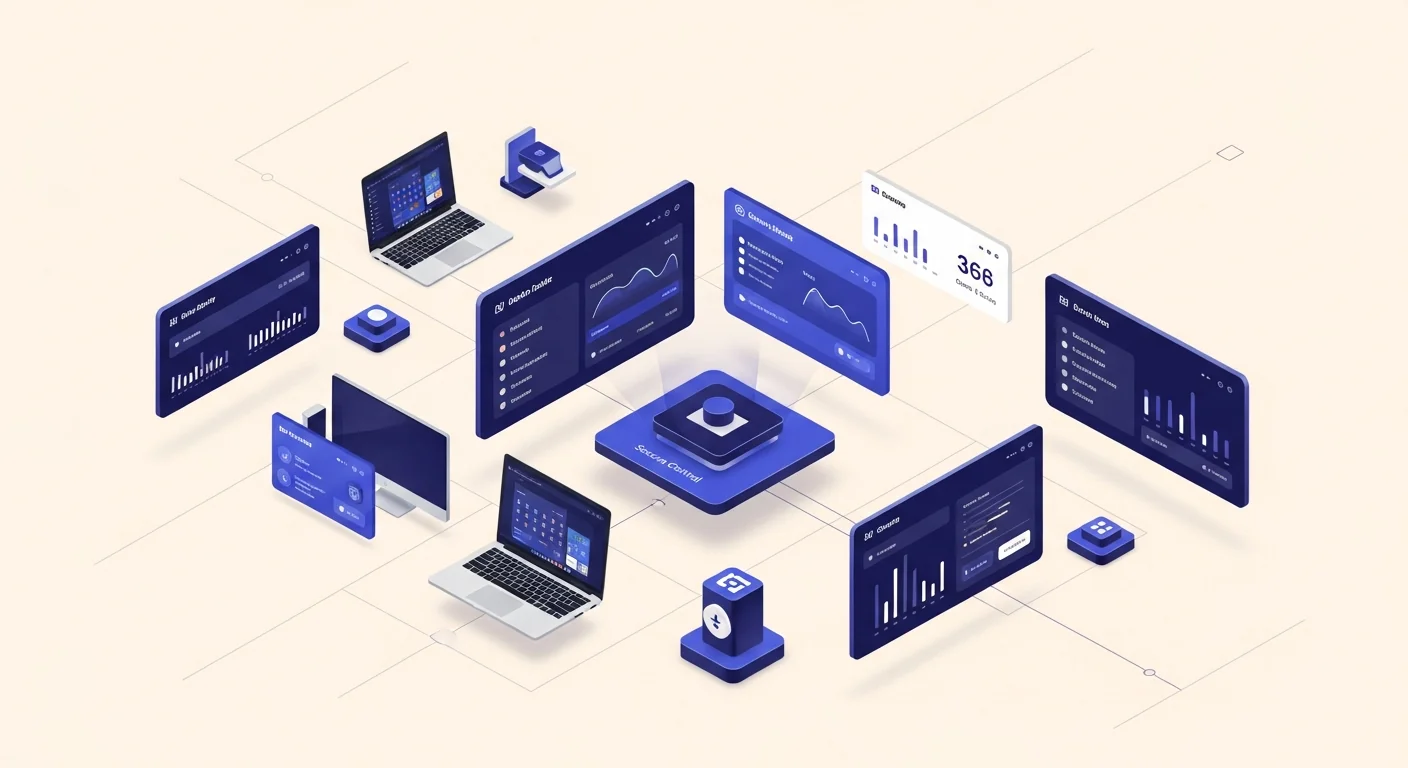
CtrlOne turns an ordinary Windows PC into a controlled kiosk. Lock the machine to the apps people are meant to use, strip away the desktop, settings, and shortcuts they are not, and keep it that way even if someone reboots or unplugs the network - all managed from one web console.
What is Windows kiosk software?
Kiosk software takes a general-purpose Windows computer and narrows it down to a single, predictable job: a check-in terminal, a self-service screen, a demo station, a wayfinding display, or a shared point-of-use PC. The whole point is that the person in front of it can do the one thing it is there for and nothing else - they cannot open a command prompt, change the wallpaper, install software, dig through the file system, or wander off into settings that break the experience for the next person.
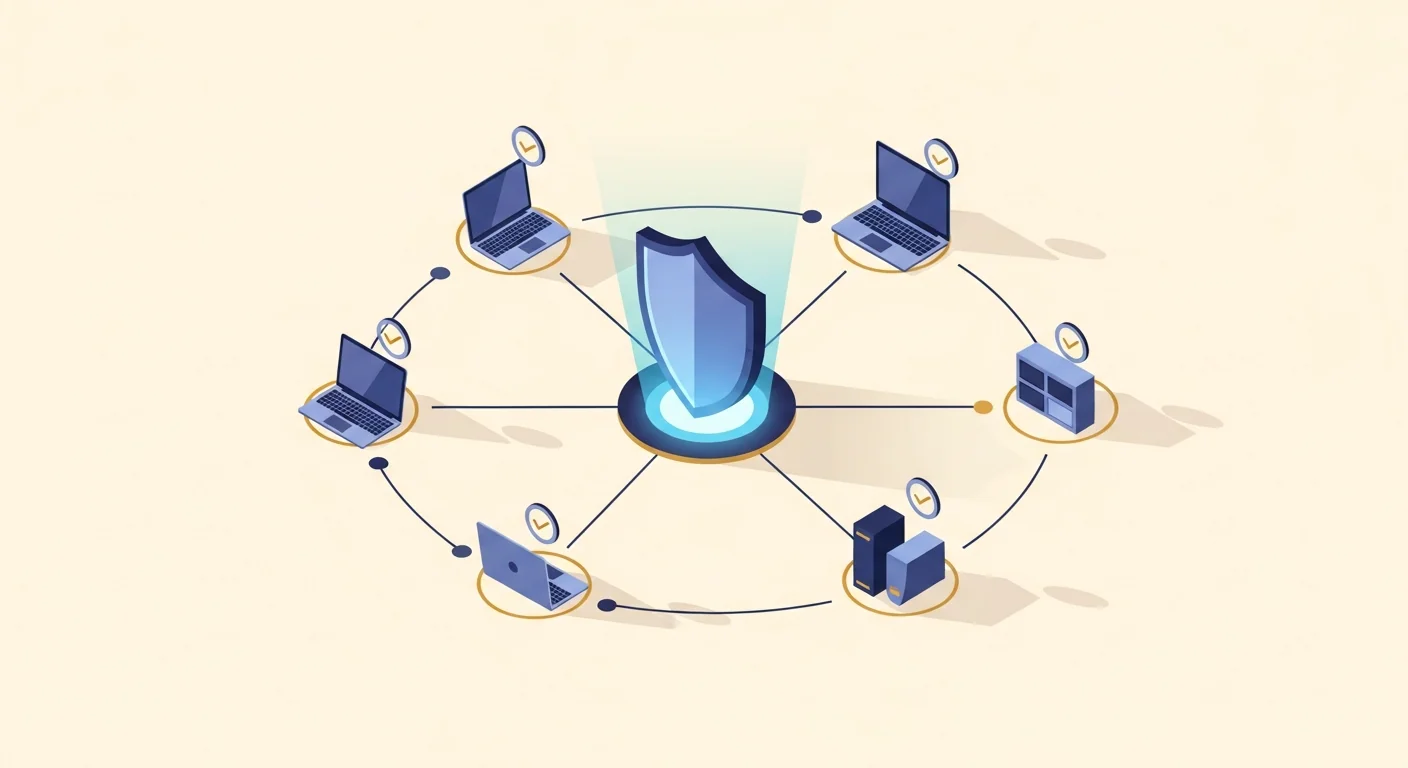
CtrlOne delivers that lockdown as a policy you set once and push to every kiosk from a browser. A lightweight, tamper-proof agent runs as a protected system service on each Windows 10 and Windows 11 machine and checks in about every 30 seconds. Instead of hand-editing each PC, you choose which apps stay reachable, then switch off the surfaces a kiosk should never expose: Task Manager, the Control Panel and Settings, Run, the registry editor, right-click menus, USB storage, and unmanaged web browsing. The Kiosk Lockdown template gives you a hardened starting point in one click, and you tune it from there.
Because enforcement lives in the agent rather than a login script, the lockdown holds when the kiosk is offline and fails closed after a configurable window, so nobody escapes it by pulling the network cable. Every policy is versioned with one-click rollback and written to a tamper-evident audit log, and the auto-scheduler can even relax or tighten the kiosk on a daily timetable - open for staff in the morning, hard-locked for the public during the day. CtrlOne enforces all of this through Windows policy and service control; it never renames executables or deletes app files.
Why run kiosks on CtrlOne
- Lock to the job it is for - Keep the apps a kiosk needs reachable and shut down everything else, so a visitor or shopper cannot browse the file system, install software, or break the station for the next user.
- No per-machine babysitting - Define the kiosk profile once and push it to every terminal from a browser, instead of walking to each PC to edit the registry or configure Assigned Access by hand.
- Survives reboots and tampering - The protected agent blocks documented disable vectors and re-applies the lockdown on startup, so a curious user cannot free the machine by restarting it or closing an app.
- Works offline - Enforcement lives on the device and fails closed after an offline window, so a kiosk stays locked even if it loses Wi-Fi or someone unplugs the network cable.
- Schedule open and locked hours - Use the auto-scheduler to unlock a terminal for staff at opening and hard-lock it for the public during the day, automatically, with no one flipping switches.
- One-click template to start - The Kiosk Lockdown template gives you a hardened baseline instantly, so a new terminal is production-ready in minutes rather than an afternoon of manual configuration.
- Audit every change - Policies are versioned with one-click rollback and recorded in a tamper-evident log, so you always know what a kiosk allows and can undo a change that goes wrong.
Windows kiosk features
- App allow lists - Keep the specific applications a kiosk is meant to run reachable while blocking the launch of everything else, so the terminal only ever does its intended job.
- Desktop and shell lockdown - Hide desktop icons, lock the taskbar, disable right-click menus, and remove Run so a user cannot navigate away from the kiosk experience into Windows itself.
- Settings and Control Panel off - Disable Settings, the Control Panel, Task Manager, and the registry editor so the machine's configuration cannot be changed from the kiosk seat.
- USB storage blocked - Stop flash drives, phones, and external disks from mounting on a public terminal while keeping the kiosk's own keyboard, mouse, and touch input working.
- Locked-down browsing - Pair with browser controls to restrict a kiosk to approved sites and block downloads, so a web kiosk stays on the pages it is meant to show.
- Kiosk Lockdown template - Apply a curated hardening bundle in one click as a starting point, then adjust the individual restrictions to fit your specific terminal.
- Scheduled lockdown windows - The auto-scheduler applies and lifts the kiosk profile on a daily timetable so a terminal can serve staff and the public with different rules at different hours.
- Tamper-proof re-apply - The agent restores the kiosk state on reboot and after tamper attempts, so the lockdown is not something a user can quietly switch off.
Where CtrlOne kiosks fit
- Reception & check-in - Lock a lobby PC to a visitor sign-in or badge app so guests cannot browse the machine while waiting, and staff cannot repurpose it.
- Retail & self-service - Keep in-store lookup, ordering, or loyalty terminals on task, blocking access to the desktop and settings that would break the shopping experience.
- Demo & showroom PCs - Run a fixed demo or catalogue on trade-show and showroom machines that always resets to the same clean, on-brand state for the next visitor.
- Wayfinding & info screens - Pin a display to a single map, directory, or dashboard so a passer-by cannot minimize it or reach the underlying Windows desktop.
- Clinic & waiting-room terminals - Restrict patient-facing screens to the intake or queue app while blocking USB storage and browsing that would expose the device.
CtrlOne vs Windows Assigned Access
| Capability | CtrlOne | Assigned Access / manual setup |
|---|---|---|
| Central web console | Yes - one profile for every kiosk | Per-machine setup, no fleet view |
| Beyond a single app | Lock apps plus USB, settings, shell, browsing | Mainly single-app or shell launcher |
| Tamper resistance | Protected agent re-applies on reboot | Local admin can reconfigure or exit |
| Scheduled lockdown | Auto-scheduler for staff vs public hours | No built-in scheduling |
| Offline enforcement | Holds offline, fails closed | Depends on local config only |
| Rollback & audit | Versioned, one-click, logged | Manual reconfiguration to revert |
| Home & Pro support | Runs on every Windows edition | Best on Enterprise / Education |
Windows kiosk software FAQs
Can I lock a PC to just one or two apps?
Yes. You choose which applications stay reachable and block the launch of everything else, so a kiosk only runs the app or apps it is meant to. You can adjust the allowed set from the console at any time without visiting the machine.
Will users be able to reach the desktop or settings?
No, when you enable the lockdown. You can hide desktop icons, lock the taskbar, disable right-click and Run, and switch off Settings, the Control Panel, Task Manager, and the registry editor, so there is no obvious path from the kiosk app back into Windows.
Does the kiosk stay locked if it goes offline?
Yes. Enforcement lives in the on-device agent, so the kiosk profile holds without a network connection and fails closed after a configurable offline window. Pulling the network cable does not unlock the machine.
Can a user break out by restarting the PC?
No. The tamper-proof agent re-applies the kiosk state on startup and blocks documented disable vectors, so a reboot brings the machine back up still locked rather than opening a way out.
Do I have to set up every kiosk by hand?
No. You define the kiosk profile once in the console and push it to every terminal, and the Kiosk Lockdown template gives you a hardened starting point in one click. New kiosks are ready in minutes instead of a manual setup on each PC.
Does this work on Windows 10 and 11 Home or Pro?
Yes. CtrlOne runs on every Windows 10 and Windows 11 edition, including Home and Pro, using registry-based policy rather than requiring the Group Policy Editor, so you are not limited to Enterprise or Education for kiosk lockdown.
Turn a Windows PC into a locked-down kiosk
See how CtrlOne narrows a machine to a single job, keeps it locked through reboots and offline, and manages every terminal from one console. Explore the full feature catalogue or get in touch for a walkthrough.